
How to use variables to create reusable deal and section templates
 Hampus Borgos
Learn how to use variables and formulas in Dealight to build reusable deal templates and section templates — so your pricing stays consistent and adapts automatically.
If you send deals regularly, you know the pain: copying numbers between fields, recalculating totals when a single input changes, and hoping nobody makes a typo along the way. Variables in Dealight solve this. Define a value once — like the number of guests, project days, or a markup percentage — and reference it across your entire deal. When the value changes, everything updates automatically.
This guide walks you through how variables work, how to use them in formulas, and how to combine them with deal templates and section templates to build a pricing system you can reuse across projects.
What are variables?
Variables are named values that you can reference in calculations throughout your deal. Think of them like cells in a spreadsheet — you give a value a name, and then use that name in formulas instead of hardcoding numbers.
For example, instead of manually typing "5" into every field that depends on the number of project days, you create a variable called days with a value of 5. Every formula that references days updates automatically when you change it to 6 or 10.
Where variables live
Variables exist at two levels:
- Deal-level variables — available across all sections in the deal. Great for values that apply to the entire project, like the number of people, a discount percentage, or a daily rate.
- Section-level variables — scoped to a single section. Useful when a section has its own inputs that don't apply elsewhere, like a specific material cost or a section-specific multiplier.
Section-level variables override deal-level variables with the same name. This means you can set a default at the deal level and override it in a specific section when needed.
Creating your first variable
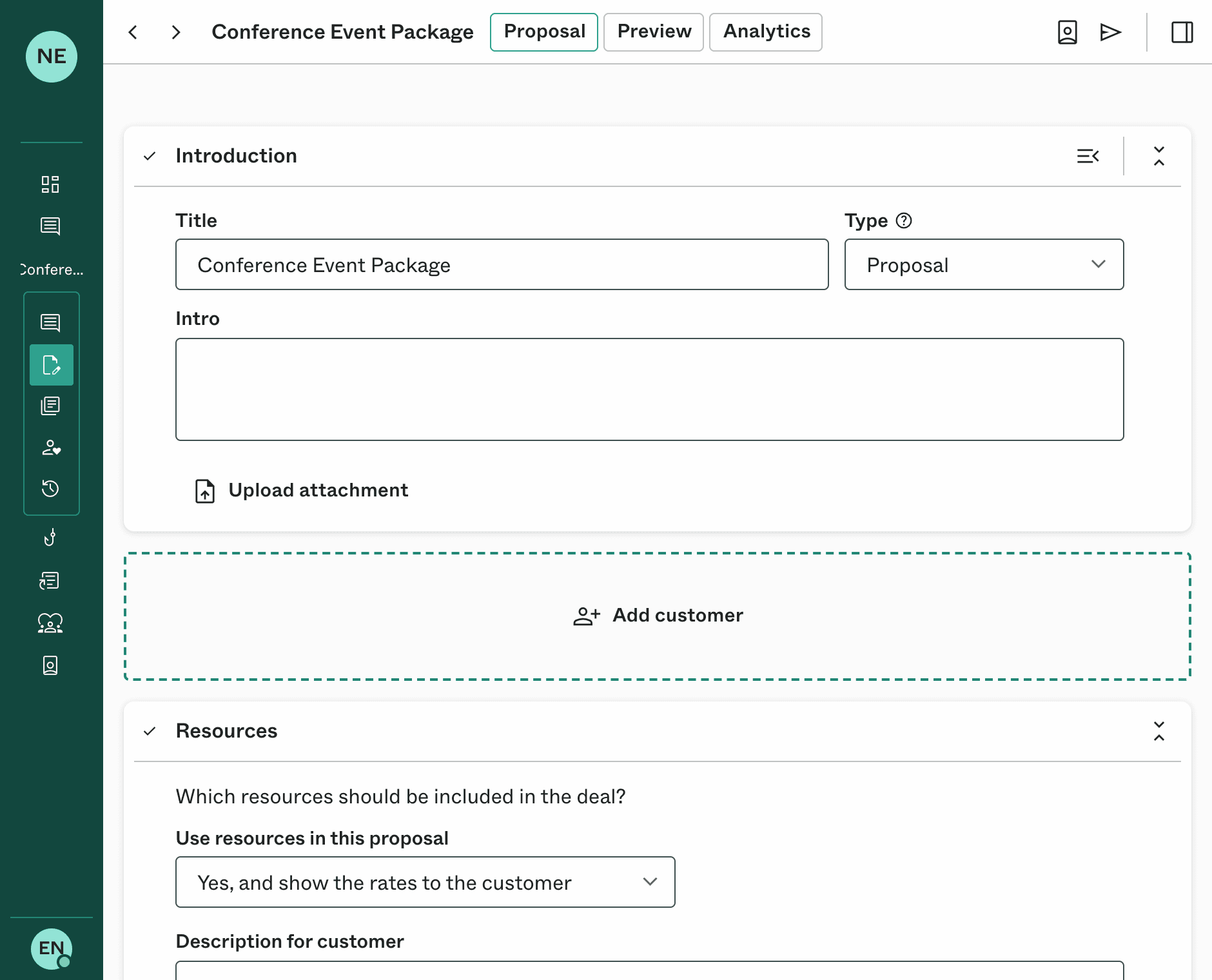
- Open a deal in edit mode
- You'll see a Variables area at the top of your deal, and within each section
- Click Add variable
- Give it a Name — this is the identifier you'll use in formulas (e.g., days, people, rate)
- Optionally add a Description to remind yourself what it represents
- Enter a Calculation — either a plain number (like 5) or a formula (like =people * 2)
That's it. Your variable is now available in quantity and hours fields across the deal.
Writing formulas
Quantity and hours fields in your deal support formulas — prices and costs are always plain numbers. Type = as the first character to switch into formula mode. From there, you can write expressions that reference your variables by name.

Basic arithmetic
Formulas support the operations you'd expect:
- =days * rate — multiply two variables
- =people + 2 — add a constant
- =(A + B) * 2 — use parentheses for grouping
- =total / 4 — division
Referencing other line items
Within a section, you can reference other task lines by their title. If you have a line item called "Installation" with a quantity of 8, you can write =Installation * 1.5 in another quantity or hours field to calculate a value based on it.
If a title contains spaces or special characters, wrap it in brackets: =[Base installation] * 2.
Percentages
You can use percentages directly in formulas, and they work the way you'd expect from a spreadsheet:
- =1000 + 10% evaluates to 1100 (adds 10% of 1000)
- =total - 15% subtracts 15% from the total
- A variable can also hold a percentage value (e.g., 10%), and when referenced in a formula, it behaves like a percentage — =subtotal + markup where markup is 10% gives you the subtotal plus 10%.
Built-in functions
A handful of useful functions are available:
- MIN(a, b) — returns the smaller value
- MAX(a, b) — returns the larger value
- ROUND(x), FLOOR(x), CEIL(x) — rounding
- CLAMP(min, value, max) — constrains a value to a range
For example: =MAX(days * rate, 500) ensures a minimum charge of 500.
Building a reusable deal template
Now that you understand variables, the real power comes from combining them with templates. Here's how to build a deal template that adapts to any project:
Step 1: Create a template deal
Go to your Templates tab and create a new template. Give it a descriptive name, like "Conference event" or "Renovation quote."
Step 2: Define deal-level variables
Add the inputs that change from project to project as deal-level variables. For a conference event, this might be:
| Name | Description | Calculation |
|---|---|---|
| guests | Number of guests | 100 |
| days | Number of event days | 2 |
| markup | Profit margin | 15% |
These are the knobs you'll turn each time you create a deal from this template.
Step 3: Build sections that reference the variables
Create your sections and line items. Use formulas in the quantity and hours fields to reference deal variables — prices are entered as plain numbers.
Catering section:
| Line item | Quantity | Unit price |
|---|---|---|
| Lunch | =guests * days | 45 |
| Coffee & snacks | =guests * days | 12 |
| Dinner | =guests | 85 |
Venue & equipment section:
| Line item | Quantity | Unit price |
|---|---|---|
| Venue rental | =days | 2000 |
| AV equipment | =days | 800 |
| Staff | =days * 3 | 450 |
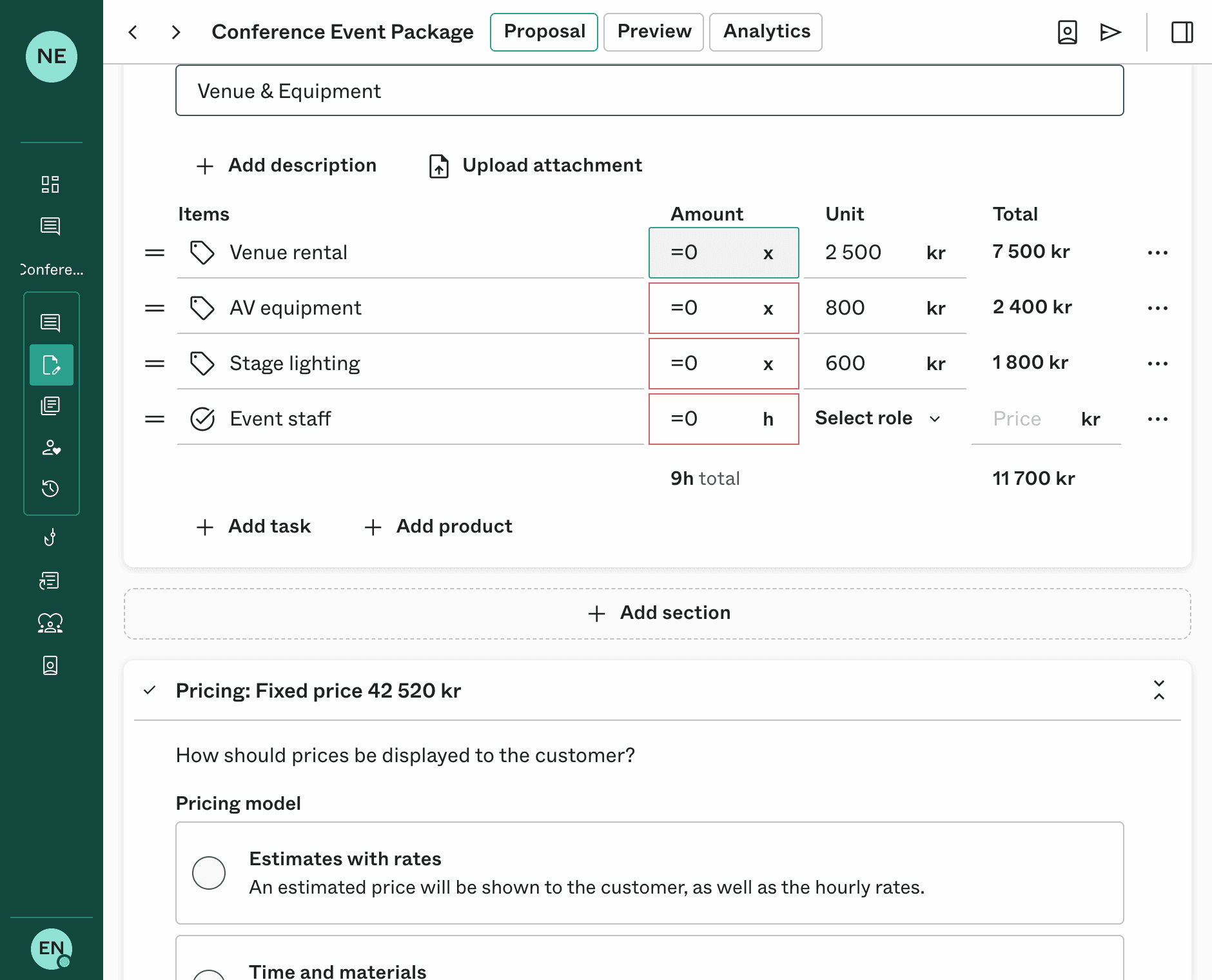
Now when you create a new deal from this template, you only need to update guests and days — every line item recalculates automatically.
Step 4: Use the template
When creating a new deal, choose Based on a template and select your template. All the variables, sections, formulas, and structure are copied over. Adjust the variable values to match the new project, and your entire deal updates in seconds.
Building reusable section templates
Not every deal follows the same structure, but certain sections might. Section templates let you save a section — including its variables, line items, and formulas — and insert it into any deal.
Creating a section template
- Build a section in any deal with the variables and formulas you want to reuse
- Click the section menu and choose Save as template
- Give it a name and description
The section template preserves everything: the section-level variables, line item titles, quantity formulas, and unit prices.
Using a section template
When editing a deal, click Add section and choose Select template. The saved section is inserted with all its formulas intact. If the section references deal-level variables (like days or guests), those will resolve as long as the deal has variables with matching names.
This is what makes the system composable: define your shared inputs at the deal level, and your section templates will plug in and work automatically.
Updating a section template
If you improve a section after inserting it from a template, you can push those changes back. Click the section menu and choose Update template — the original template is updated so that future deals get the improved version.
Practical example: a renovation company
Let's put it all together with a real-world example.
Deal template: "Bathroom renovation"
Deal-level variables:
| Name | Description | Value |
|---|---|---|
| sqm | Bathroom area (m²) | 8 |
| hours | Estimated labor hours | 40 |
Section: Materials
| Line item | Quantity | Unit price |
|---|---|---|
| Floor tiles | =sqm * 1.1 | 35 |
| Wall tiles | =sqm * 2.5 | 28 |
| Adhesive | =sqm * 0.5 | 18 |
| Grout | =sqm * 0.3 | 22 |
Section: Labor
| Line item | Hours | Hourly rate |
|---|---|---|
| Demolition | =hours * 0.2 | 65 |
| Tiling | =hours * 0.5 | 65 |
| Plumbing | =hours * 0.2 | 75 |
| Finishing | =hours * 0.1 | 65 |
When a new customer inquiry comes in, you create a deal from the template, update sqm to 12 and hours to 55, and the entire quote recalculates — materials, labor, everything. No manual math, no missed fields.
Tips for working with variables
- Keep variable names short and descriptive — days, people, rate, sqm are easy to type in formulas
- Use deal-level variables for shared inputs — anything referenced across multiple sections belongs at the deal level
- Use section-level variables for section-specific logic — like a local multiplier or an intermediate calculation that only one section needs
- Section variables override deal variables — if you need a different value in one section, create a section variable with the same name
- Formulas update in real time — change a variable and watch all dependent fields update instantly
- Reorder variables by dragging — put the most important inputs at the top so they're easy to find
What's next
Variables and templates together give you a system for building deals that are both consistent and flexible. Instead of starting from scratch each time, you define the structure once and let the numbers follow. Whether you're quoting events, renovations, consulting engagements, or anything in between — the pattern is the same: define your inputs, write your formulas, save it as a template, and reuse it.
Ready to try it? Create your first template with variables and see how much time it saves on your next deal.

Hampus Borgos
Founder of Dealight