
Section templates: reuse parts of a deal without starting from scratch
 Hampus Borgos
Learn how to save, manage, and reuse sections across deals with section templates in Dealight — so you never have to rebuild the same line items twice.
Most businesses have parts of their deals that repeat. A catering company always includes a staffing section. An IT consultancy always has an onboarding block. A renovation firm quotes demolition the same way every time. The structure is the same — only the numbers change.
Section templates let you save any section from a deal and reuse it in future deals. The line items, quantities, prices, costs, and formulas all come along. Instead of rebuilding the same section from memory, you insert it in two clicks and adjust what needs adjusting.
Creating a section template
You create section templates directly from a deal you're working on. There's no separate template editor to learn — if you've built a section that works well, you can turn it into a template right there.
- Open a deal and find the section you want to reuse
- Click the section menu (the three-dot icon next to the section title)
- Select Save as template
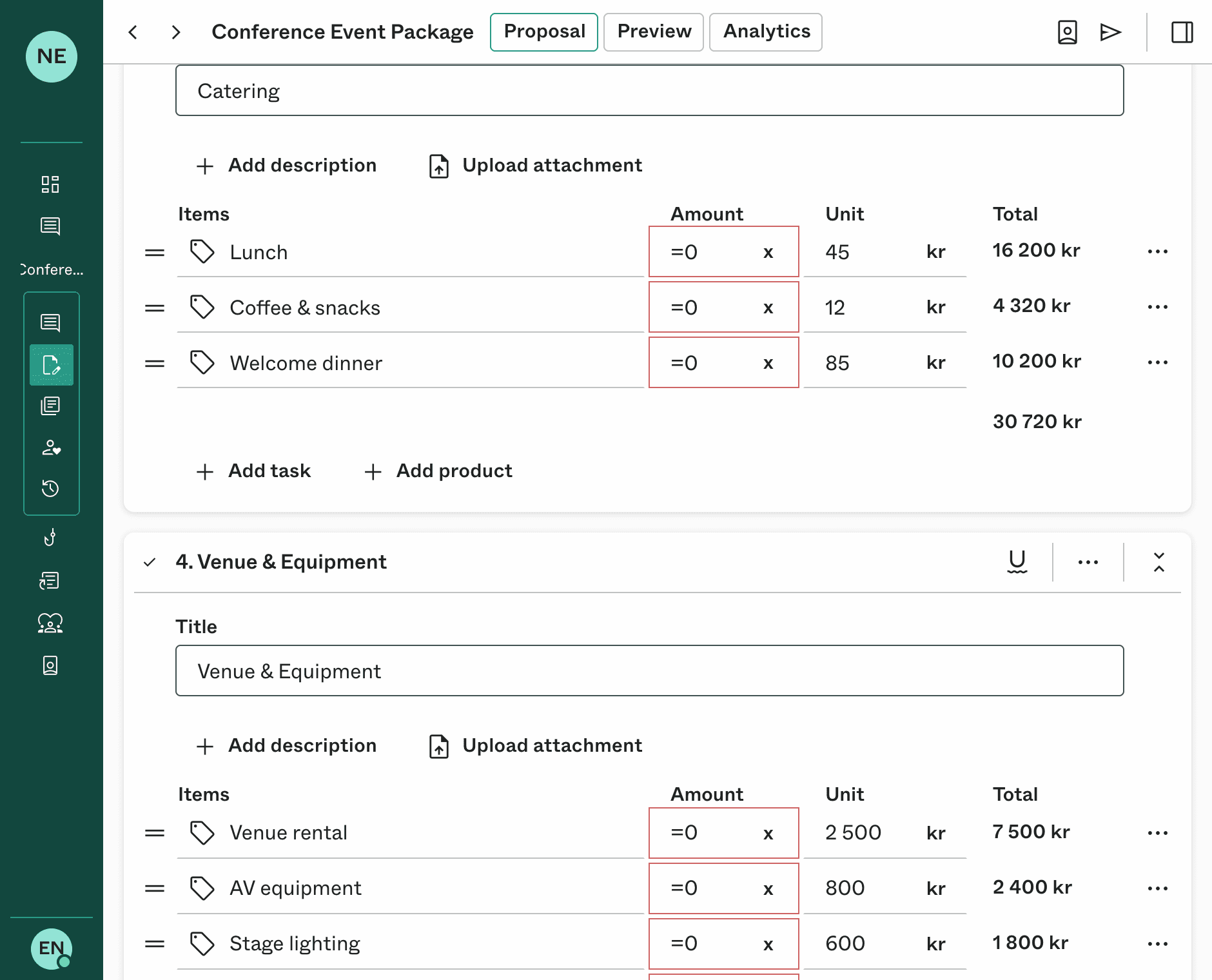
That's it. Dealight copies the entire section — title, description, all line items with their quantities, prices, and costs — into a new template. A confirmation appears with a link to edit the template if you want to refine it further.
What gets saved
Everything that makes up the section:
- Line item titles and descriptions
- Quantities and formulas — if a line item uses a formula like =days * 3, the formula is preserved
- Unit prices and costs
- Options and optional items
- Section-level variables — any variables defined on the section are included
- Resources — if the section uses resources (like team members with hourly rates), those are saved with the template
The template captures the structure of the section, not the specific deal context. When you insert it into a new deal, it adapts to that deal's setup.
Using a section template in a deal
When you're editing a deal and want to add a section you've already built before:
- Click Add section
- Choose Select template
- Pick the template you want from the list

The section is inserted into your deal with all its line items, formulas, and prices intact. You can then adjust anything — rename line items, update prices, change quantities — without affecting the original template.
How resources are handled
If the template includes resources (like team members or equipment with hourly rates), Dealight handles this automatically. The resources are transferred to the new deal using your organization's current prices — not the prices from when the template was created. This means your templates always reflect up-to-date rates.
Inserting the same template multiple times
You can insert the same template more than once in a deal. Each insertion creates an independent copy. This is useful when you have multiple phases of a project that share the same structure but need different values.
Editing a section template
Section templates are edited just like regular deals. You can open a template from the Templates tab in your deals list, or by clicking the link in the confirmation toast after saving one.
Once open, you can:
- Change the section title and description
- Add, remove, or reorder line items
- Update prices, quantities, and formulas
- Add or remove resources
- Define section-level variables
Changes to a template only affect future deals that use it. Deals that already have a copy of the template are not changed — they keep whatever state they had when the template was inserted.
Updating a template from a deal
Sometimes you improve a section while working on an actual deal and want to push those improvements back to the template. Dealight tracks which template a section came from, so you can do this without leaving your deal.
- Make your changes to the section in your deal
- Open the section menu
- Select Update template
A dialog appears with two options:
- Update existing — syncs your changes back to the original template. Line items are matched by title, so renamed or new items are handled correctly.
- Create new — saves the section as a brand-new template, leaving the original untouched.
This two-way flow means your templates stay current as your business evolves. You don't need to maintain templates separately — just improve them as you go and push the changes back when you're happy.
Managing your templates
All your templates — both deal templates and section templates — live in the Templates tab of your deals list. From there you can:
- Browse all available templates, sorted by last updated
- Search for a specific template by name
- Edit any template by clicking into it
- Delete templates you no longer need
Keeping your template library clean makes it faster to find the right one when you're building a deal. A good rule of thumb: if you've used the same section structure in three or more deals, it's worth saving as a template.
A practical example
Let's say you run an event company. Most events include a similar AV and technical setup section, but the specifics vary.
You build the section once:
AV & Technical Setup
| Line item | Quantity | Unit price |
|---|---|---|
| Sound system | 1 | 800 |
| Projector & screen | 1 | 400 |
| Stage lighting | 1 | 600 |
| Technician | =days | 550 |
| Setup & teardown | 2 | 300 |
You save this as a section template. Now every time you quote an event, you insert the template, adjust the prices if needed, and you're done with that part of the deal in seconds.
If you later add "Wireless microphones" as a standard line item in one of your deals, you can push that change back to the template so it's included automatically next time.
Making templates more flexible with variables
Section templates become even more powerful when combined with variables. Instead of hardcoding quantities, you can use formulas that reference variables — and those variables can be defined at the deal level.
For example, if your AV template references a variable called days in the technician line, any deal that has a deal-level variable called days will automatically resolve that formula. You define the number of event days once at the top of the deal, and every section that references it — catering, AV, staffing — updates together.
This approach lets you build a library of composable sections that plug into any deal and adapt to its specific inputs. To learn more about how variables and formulas work, see our guide on using variables to create reusable deal templates.
Summary
Section templates save you from repetitive work. Instead of rebuilding the same line items deal after deal, you save the structure once and reuse it everywhere. Combined with variables, they give you a system where each part of your deal is both standardized and flexible — consistent enough to trust, adaptable enough to fit any project.
Start by saving your most-used section as a template. You'll notice the difference the next time you build a deal.

Hampus Borgos
Founder of Dealight